Sports graphics for your videos
Score cards, lower thirds and callouts that follow a player, made in your browser and added to your clip, or exported as overlays for any editor. ClippCut’s Graphics studio is more than a teleprompter.
Step by step: make sports graphics
- Pick a graphic. Score cards, lower thirds, info cards, callouts, title cards, timers, rankings, comparisons and photo or quote cards, from the gallery.
- Fill it in. Type the names, numbers and stats, and pick your team colours. It animates in and out by itself: slide, wipe, pop or fade.
- Point at a player, and follow them. Add a callout, pause where the player is clear, tap Track and tap them. ClippCut follows them through the clip on your device.
- Export. An MP4 on your clip with its sound, a green-screen video for CapCut, a transparent PNG sequence for Premiere or DaVinci, or a PNG or SVG still.
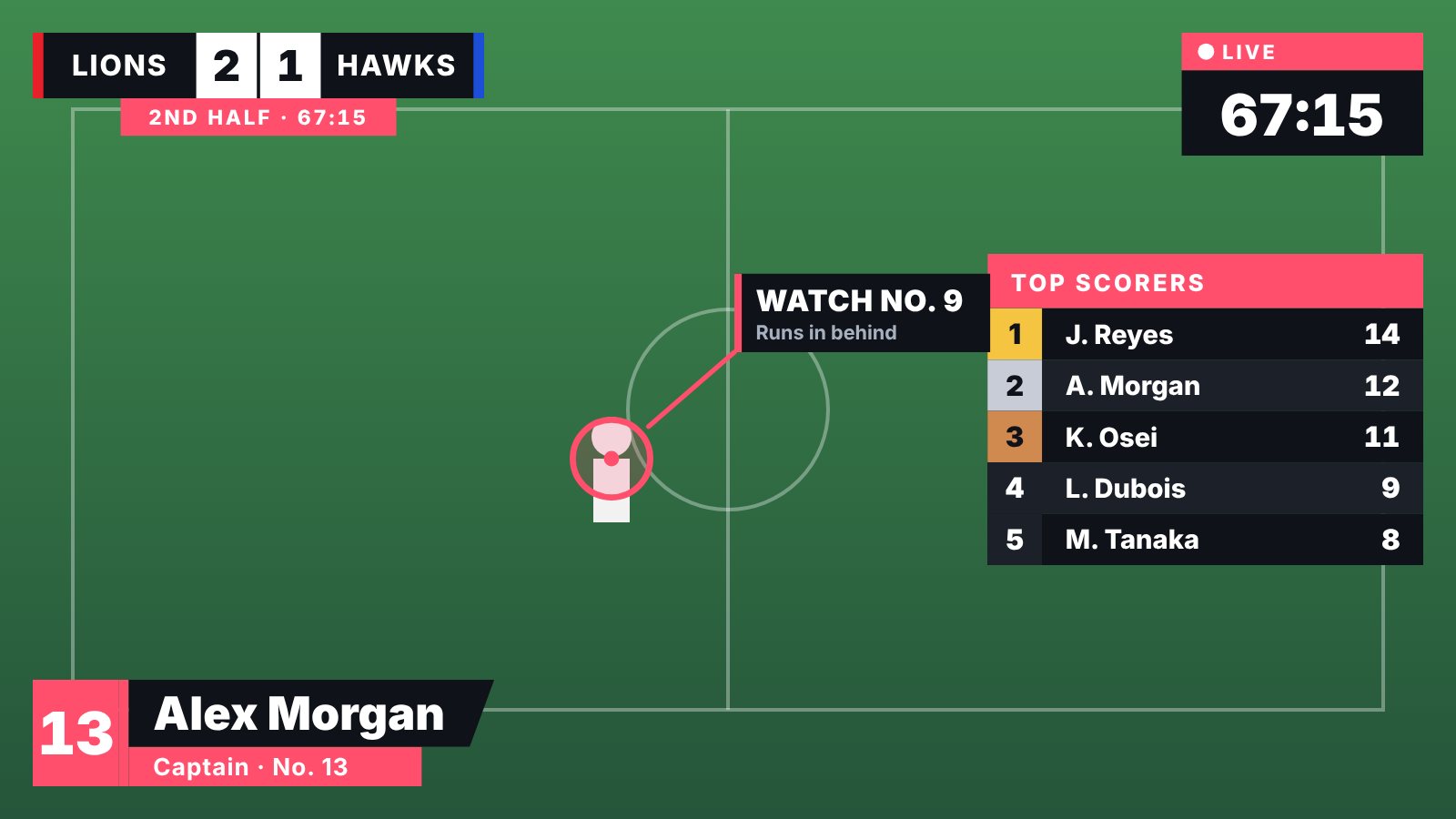
Nine kinds of graphic
- Score cards: both teams with their colours, the score, the period and a match clock that runs up or down.
- Lower thirds: introduce a player, a coach, a guest or a place, with an optional shirt number.
- Info cards: a profile with a photo, name, number, role and up to six stats that count up as they appear.
- Callouts: a ring, a line and a label pointing at a player. Tap the player once and the callout follows them through the clip.
- Title cards: a bold intro for a match, an event or a segment, over a colour band or the darkened video.
- Time and date: a countdown, a count-up, a clock or a date, with an optional red “live” dot.
- Lists and podiums: results and rankings, or a top three on a podium.
- Comparisons and graphs: two players head to head with mirrored bars, or a bar chart of any numbers.
- Image and quote cards: a framed photo with a caption, or a quote with who said it.
Every graphic animates in and out (slide, wipe, pop or fade), takes your team colours, and comes in a sharp broadcast style or a clean rounded one, on dark or light panels.
How it works
- Open the Graphics studio and pick the shape: 16:9 for YouTube, 9:16 for TikTok, Reels and Shorts, or 1:1 and 4:5 for the feed.
- Choose a clip from your phone or computer, or one of your ClippCut takes. You can also make graphics with no clip at all.
- Add graphics from the gallery, fill in names and numbers, and set when each one appears and for how long.
- For a callout, pause where the player is clear, tap Track a player and tap them.
- Export.
Exports
- Video with your clip: an MP4 with the graphics and the clip’s own sound.
- Green screen video: the graphics on green, to key out in CapCut, InShot or any editor.
- Transparent PNG sequence: a .zip of frames that Premiere Pro, DaVinci Resolve, Final Cut Pro and After Effects import as a clip with transparency.
- Stills: a transparent PNG or an SVG of any frame, for thumbnails and posts.
Made on your device
The graphics are drawn as SVG, so they stay sharp at any size, and the tracking and the export happen in your browser. Your clip is never uploaded.
Pro
Designing and previewing are free. Exporting is part of ClippCut Pro.
Questions
Is my video uploaded?
No. The clip stays on your device. Tracking a player and making the video both happen in your browser.
Can I use the graphics in Premiere Pro, DaVinci Resolve or CapCut?
Yes. Export a transparent PNG sequence for Premiere Pro, DaVinci Resolve, Final Cut Pro and After Effects, or a green-screen video for CapCut and phone editors.
Does it work for sports other than football?
Yes. The words are yours: score cards work for basketball, rugby, hockey or esports, and lower thirds and info cards work for coaches, podcasts and lessons too.
How well does player tracking work?
Best on a player who stands out from the background. It holds still if someone runs in front, and you can track again from the point where it slips.
Last updated .